
Grace screenshots — reader, dictionary, commentary, notes
A walk through a typical Bible-study session in Grace — the panels, the search and reference tools, the notes editor, and the customizable workspace. All screenshots are from the current Grace beta on Linux; the Windows and macOS builds use the same panel layout.
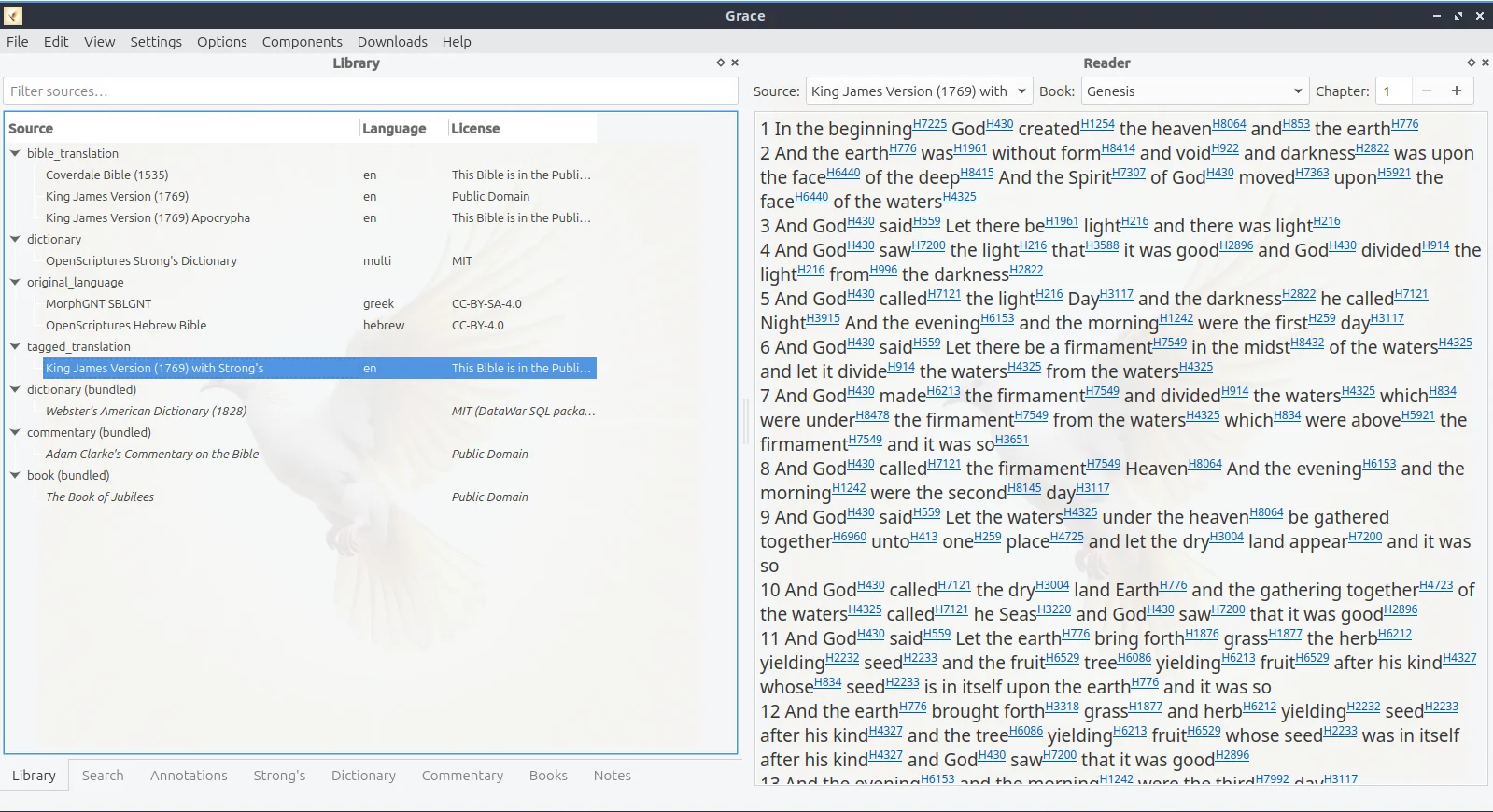
Library & Reader
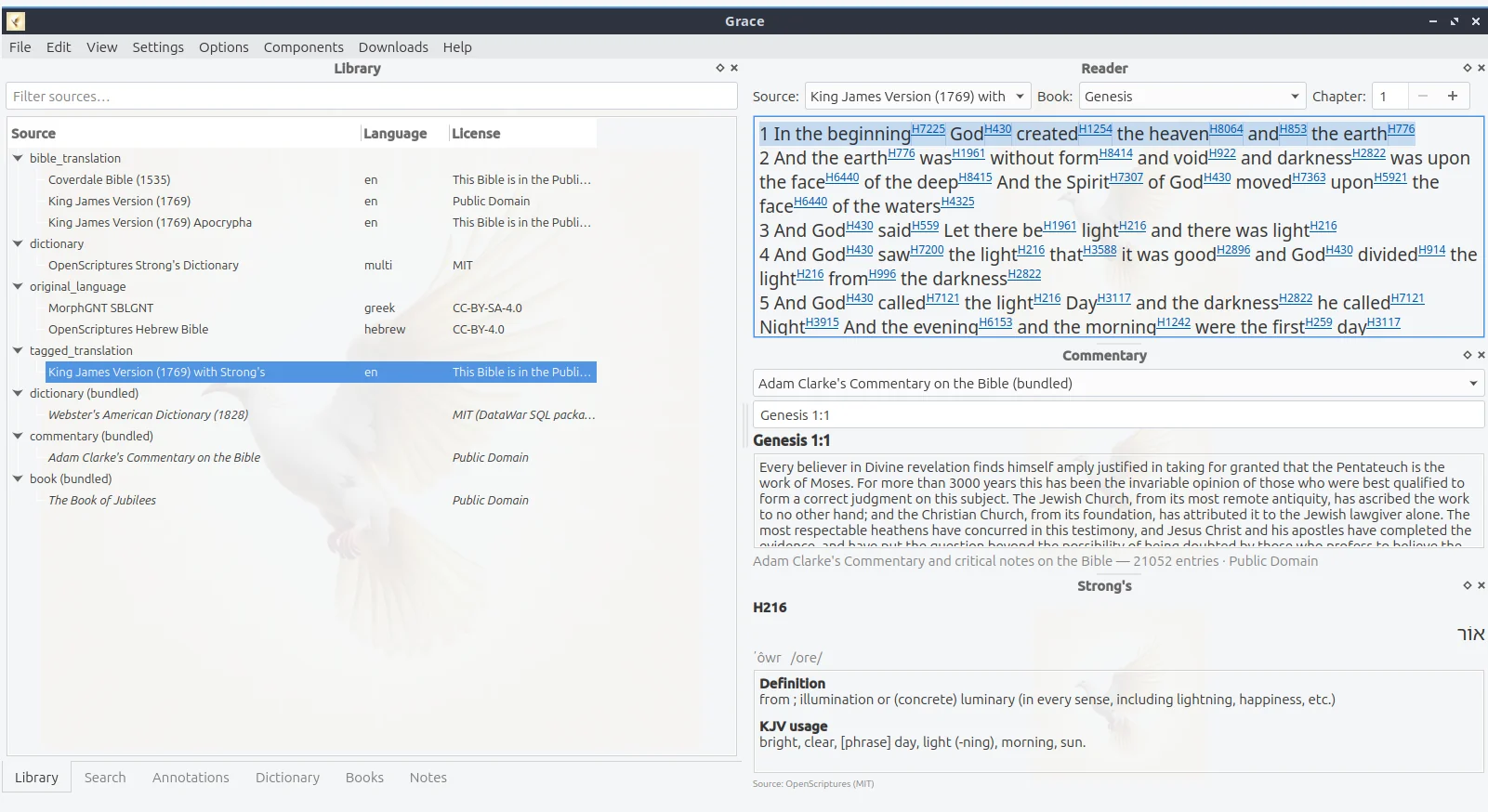
The starting view. The Library panel on the left lists every installed translation, dictionary, and commentary. The Reader panel on the right opens whatever you click — chapter view with verse numbers, optional Strong's superscripts, and the same cross-reference and Define right-click menu as the rest of the app.
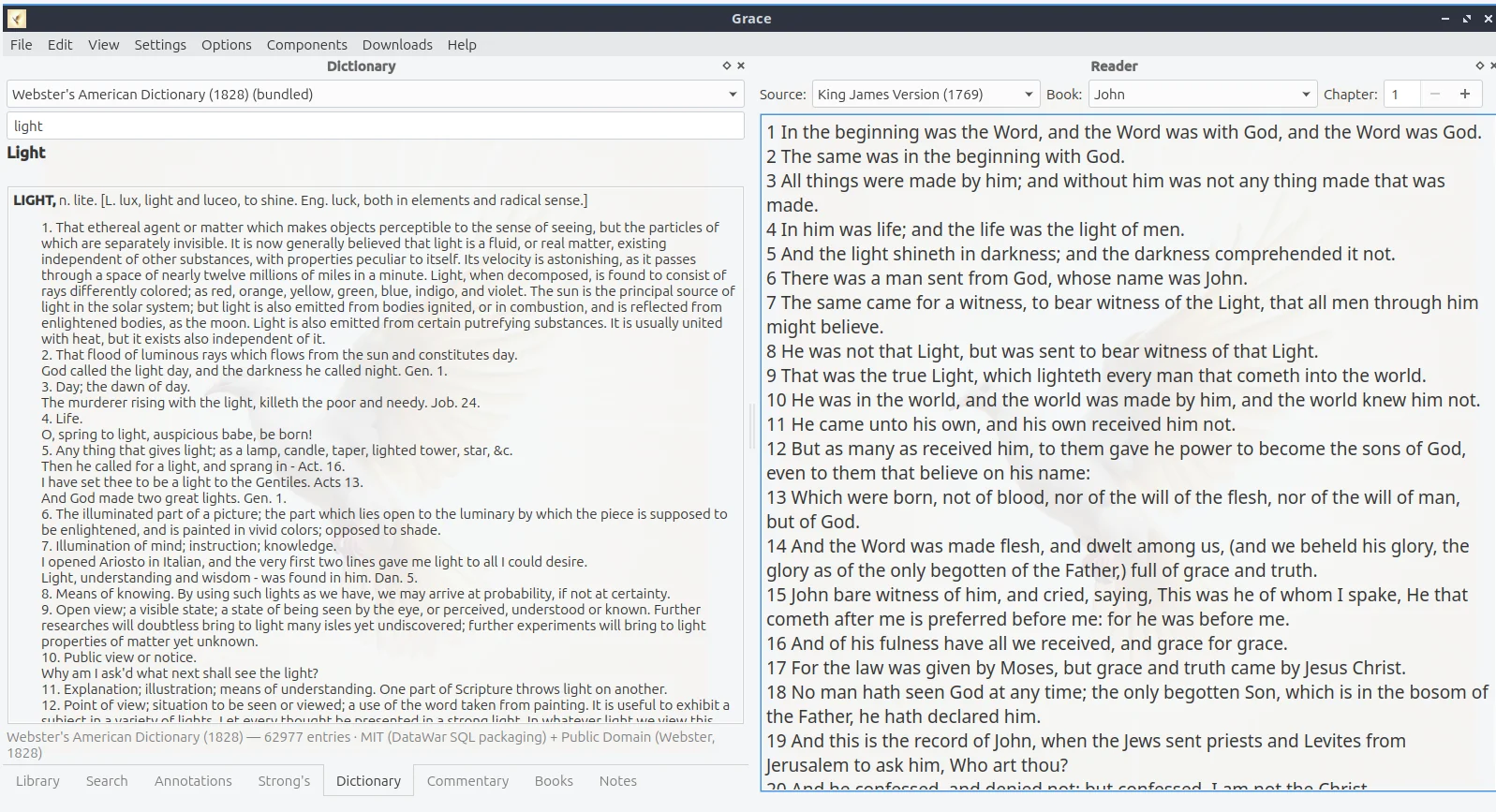
Dictionary & Reader
Right-click a word in the Reader and pick Define to open the Dictionary dock with the matching entry. Webster 1828 is bundled by default; Webster 1844 and 1913 are one-click installs from the Downloads → Dictionaries dialog. The reader keeps your verse position so you can scan a definition and resume reading without losing place.
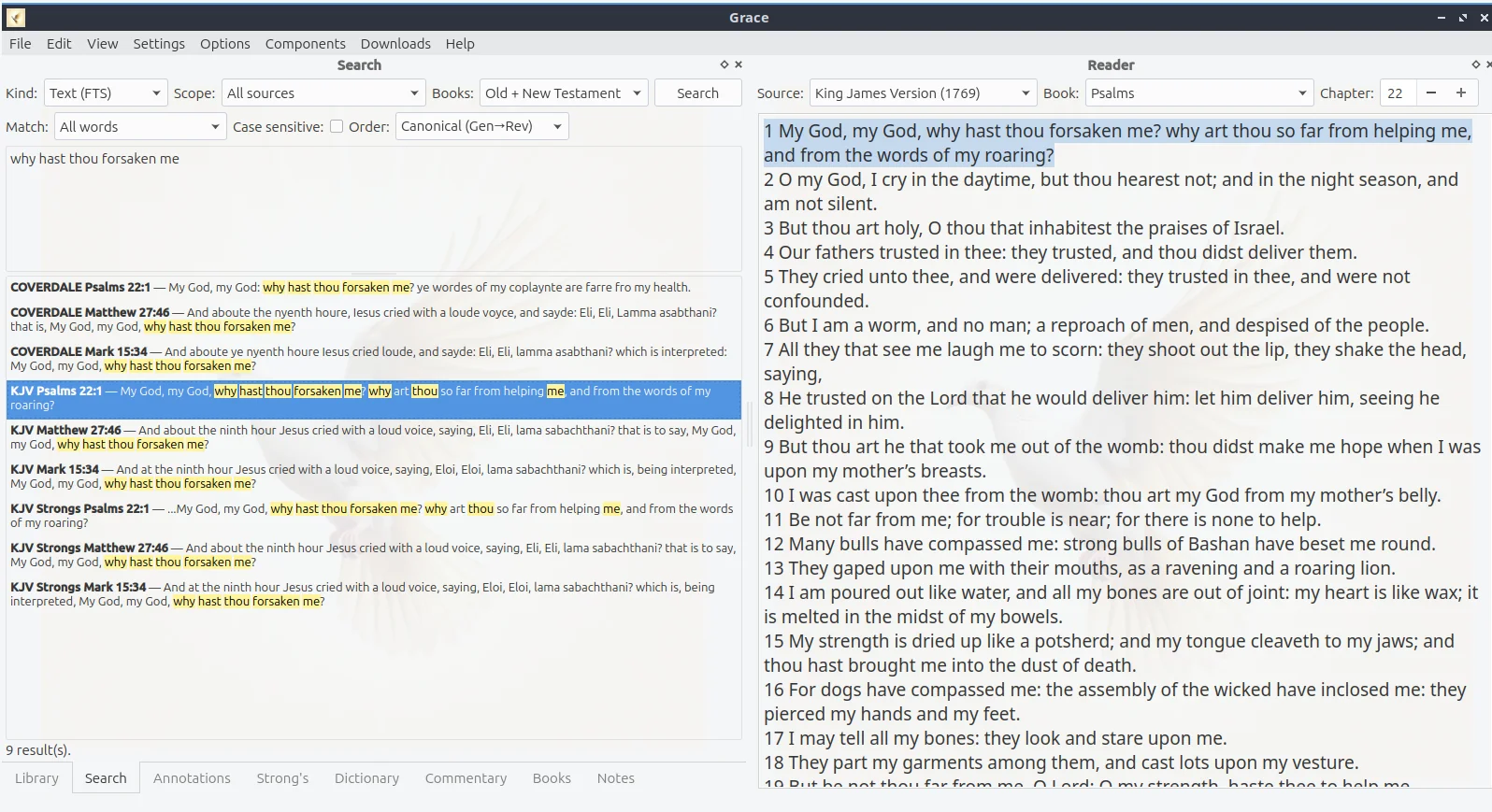
Search & Reader
The Search dock runs substring, phrase, and regex queries across any combination of installed Bibles. Click a hit and the Reader jumps to that verse with the match flash-highlighted so it's easy to find on screen. The same case-sensitive and mode toggles also drive the Notes search panel — one mental model for finding things anywhere in Grace.
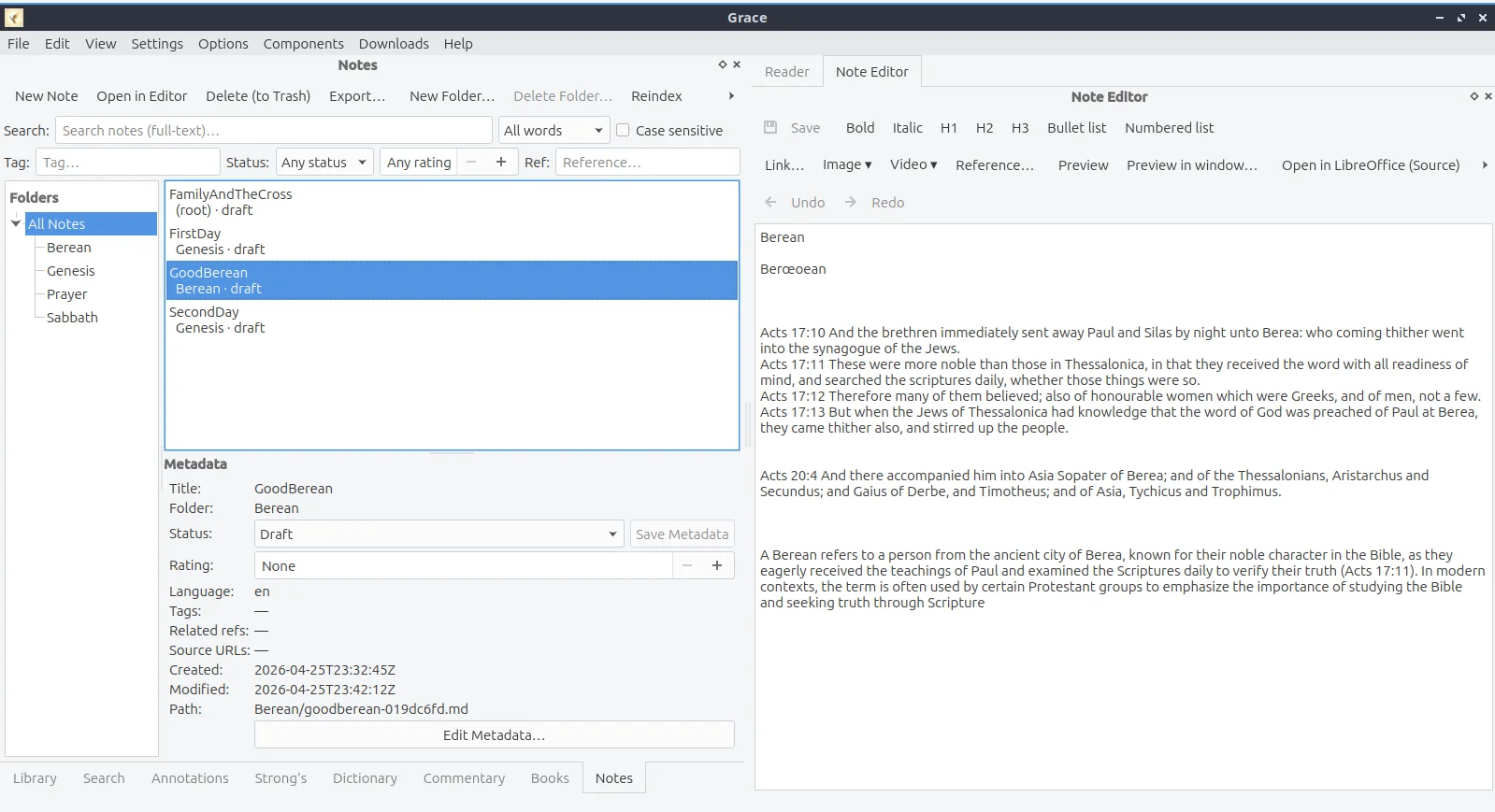
Notes & Notes editor
The Notes library lives in plain Markdown files on your disk; the catalog beside it is a rebuildable SQLite index. The embedded editor handles fast capture, tagging, and linking to verses or cross-references; when a note grows into a real document you can hand it off to LibreOffice with one click and come back to the same file when you're done.
Workspace customization
Every dock is movable, resizable, and tab-stackable. Drag the Reader next to a Commentary, pin Search to the bottom, hide what you don't need, and save the layout to one of three workspace slots. Switch between a "reading" layout and a "study" layout in one click — your two workflows, one app window.